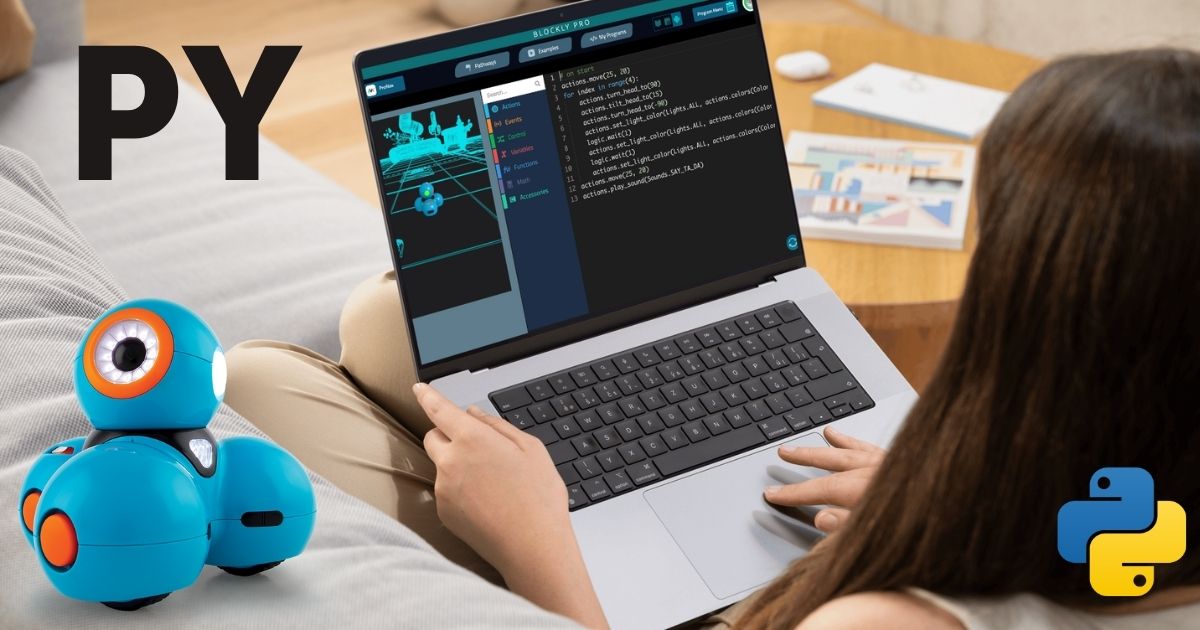
Move Freely Between Blockly, JavaScript, and Python
Blockly Pro now shows the same program in all three languages, and lets students move between them as often as they like.
If you have taught with Dash for a while, you have probably seen a student reach the point where Blockly stops being quite enough. It shows up in different ways. Some kids build something far more elaborate than the puzzle asked for. Some ask what the code “really” looks like underneath. Some announce that they want to learn Python, usually because an older sibling or a YouTube video told them that is what programmers use.
It is a good problem to have, and it is one we started solving two years ago when we brought JavaScript into Blockly Pro. The idea then was the same as it is now: a student who was ready for text should not have to leave the tool they had learned in, or give up the robot they were programming, just to see what real code looks like. They could toggle to JavaScript and keep working on the same program with Dash, and that turned out to be exactly the right shape for the problem.
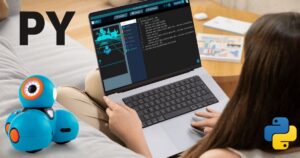
What has changed since is where students want to go next. Python competes with JavaScript as one of the most widely used programming languages in the world, and it one that most of them have heard of by the time they are ready to ask. It made sense to build them the same bridge to Python that we had already built to JavaScript.
That is live in Blockly Pro today.
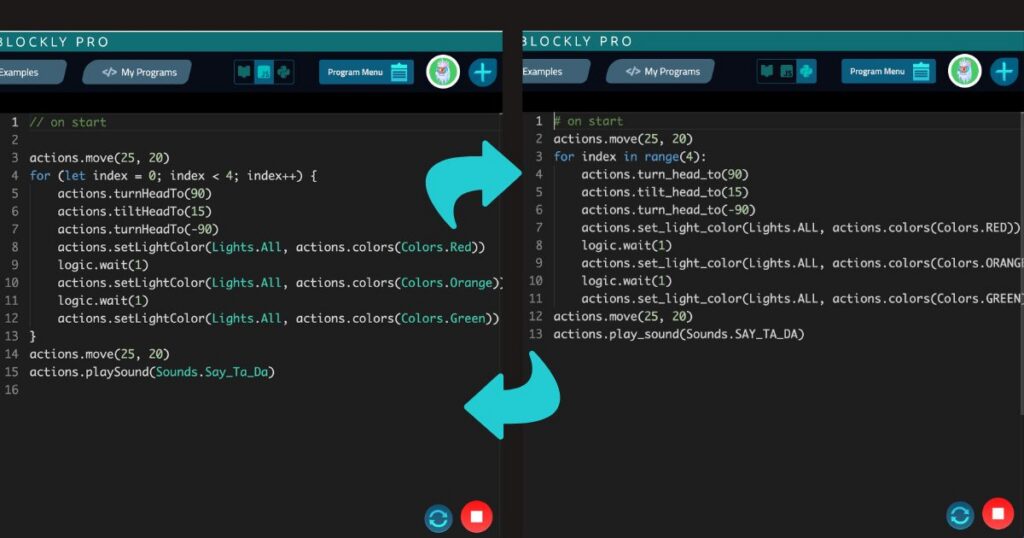
Three views of one program
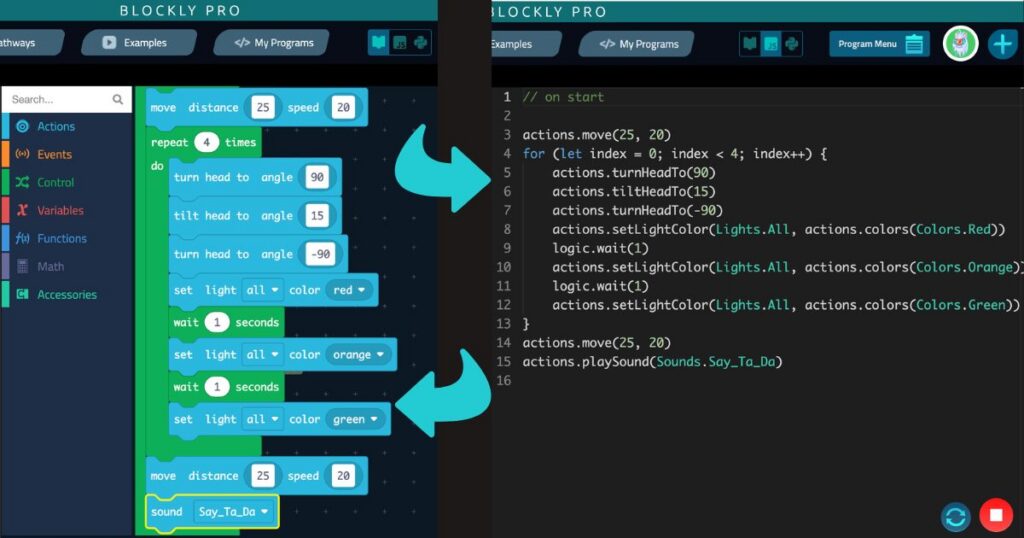
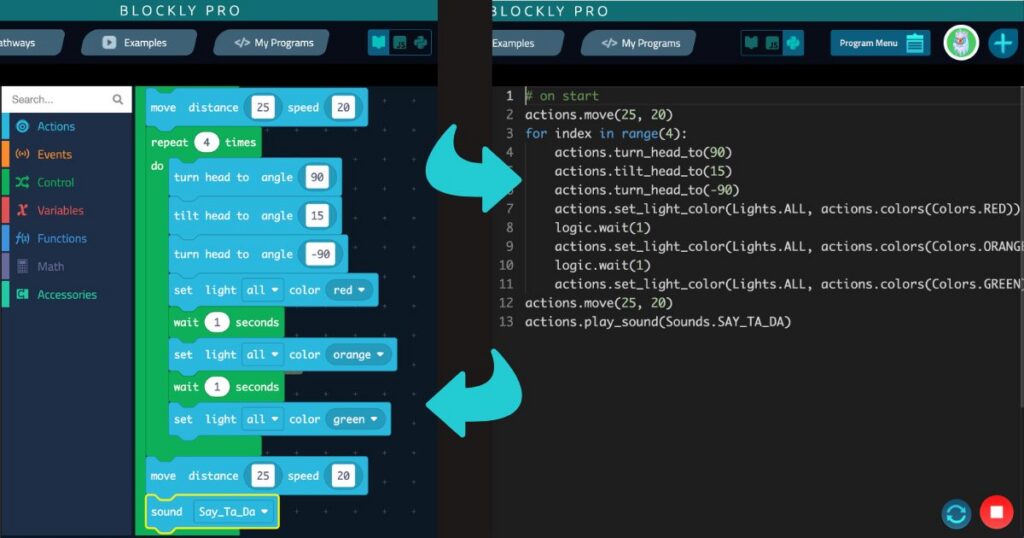
Blockly Pro now has three icons at the top of the screen: Blockly, JavaScript, and Python. Clicking one shows your current program in that language. It is not an export or a conversion that leaves the original behind. It is the same program, displayed a different way, and you can move between the three as often as you like.
A student who builds a routine in Blockly can click over to JavaScript and see their repeat 4 times block written as for (let index = 0; index < 4; index++). Another click shows the Python version, for index in range(4):. If they edit the Python and click back to Blockly, the edit is there in the stack waiting for them.
For a teacher, this means you can introduce text-based coding without changing platforms, without reteaching the interface, and without asking students to rebuild work they are proud of. The program they made in September is still the program, in whatever language they are ready to read it in.
The block menu stays available in text mode
This is the piece that does the most to scaffold a student’s move from one language to the next, and it is easy to overlook in a feature list.
When a student switches to JavaScript or Python, the block palette does not go away. Actions, Events, Control, Variables, Functions, Math, and Accessories are all still there in the sidebar, and they behave a little differently than you might expect.
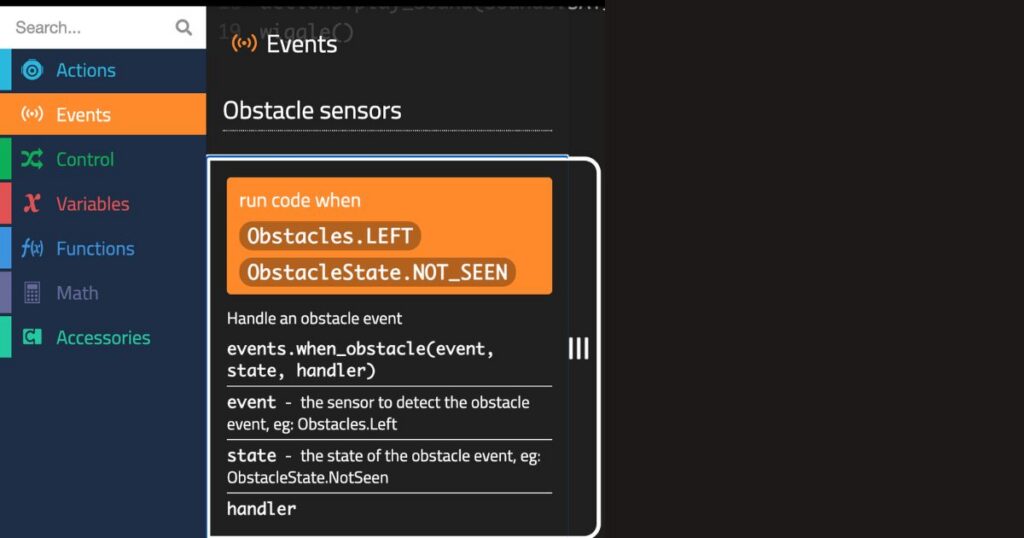
Clicking Actions while in Python view brings up the familiar blue move distance 25 speed 20 block, and printed underneath it is the text version, actions.move(distance, speed), along with a plain explanation of each part: distance is how far to move in centimeters, speed is how fast to move in centimeters per second. Clicking Events brings up the orange run code when block and, below it, events.when_obstacle(event, state, handler) with each parameter described the same way.
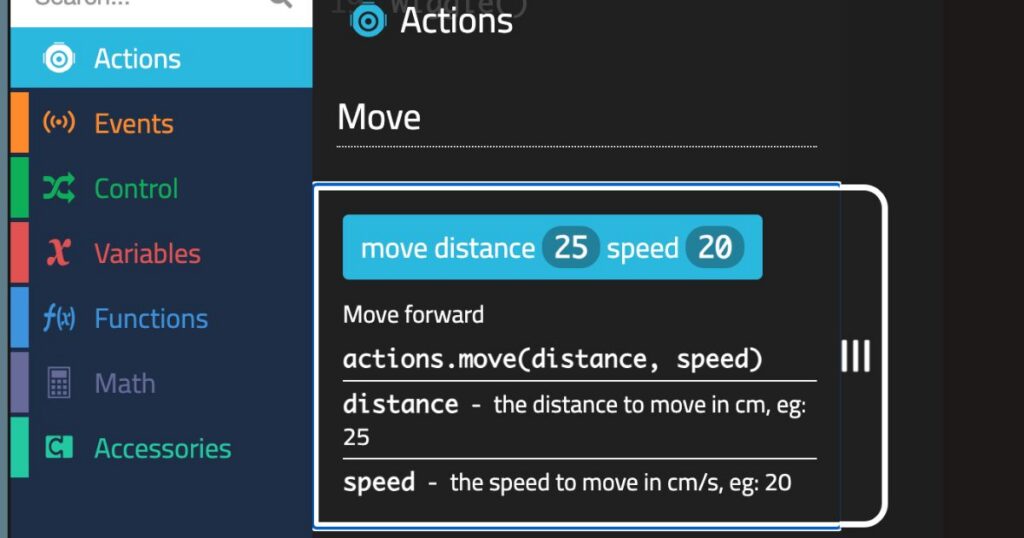
In practice, students end up using the blocks they already know as a reference for the text they are learning. They do not have to memorize command names or keep documentation open in another tab, and they do not have to stop and ask you how to spell something. Most of the questions that used to interrupt a first Python lesson now have an answer two clicks away.
What works in all three languages
The JavaScript and Python here are the real languages, with the syntax rules students will meet again in any high school computer science class. Python uses colons, indentation, and snake_case. JavaScript uses braces, camelCase, and let.
The core structures work in every view:
- Variables, so students can store a value and use it later
- Loops, written as
forin both text languages - Conditionals, so a sensor reading can change what happens next
- Functions, which students can define, name, and call
Functions are worth calling out. A student can write their own function in Python, click back to Blockly, and find it there. That covers most of what a K-8 computer science sequence asks for, and it holds together consistently as students move between the three views.
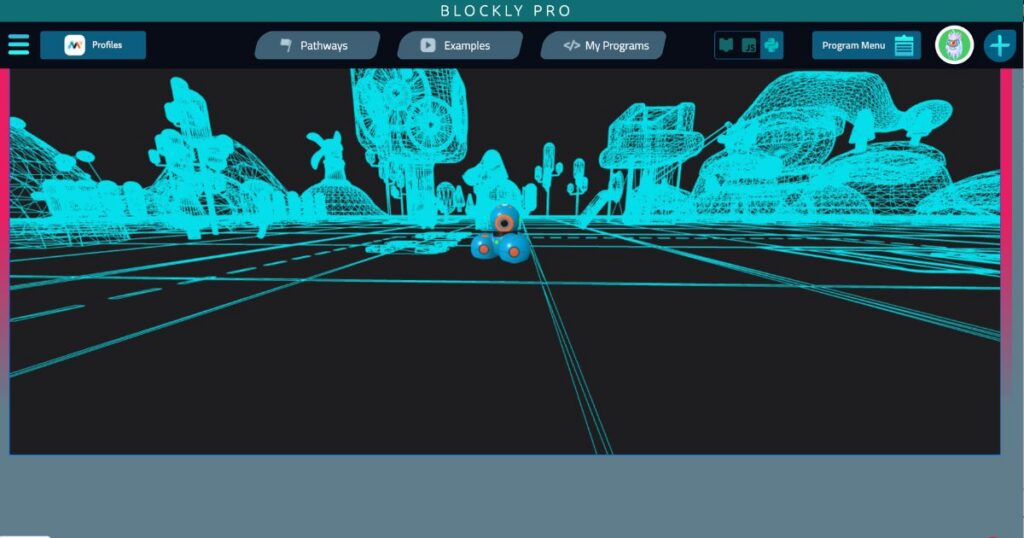
Trying it without a robot in hand
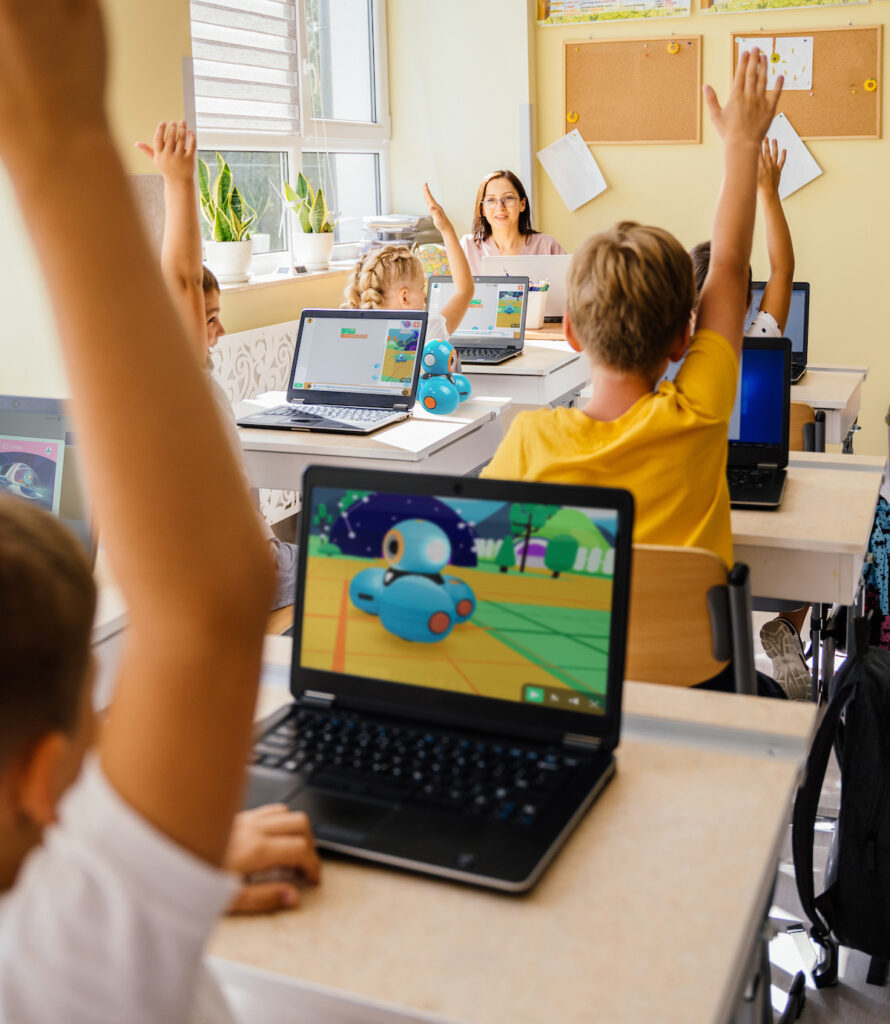
Virtual Dash works in all three views, so students can write Python, run it, and watch Dash move in the 3D environment on screen. If your class has more students than robots, everyone can still be coding at the same time. It is also useful for planning, since you can build and test a lesson at home without carrying a robot back and forth.
What you need
Blockly Pro runs in Google Chrome and all features of it are available with a Make Wonder subscription. It works with a physical Dash and with Virtual Dash. If you don’t have a paid Make Wonder subscription, your students can still access this programming interface. With a paid subscription, they will be able to save their programs, and you will be able to assign and track their progress through Coding Pathways lessons and other challenges.
One thing worth knowing before you plan a lesson around transitioning to Python: the Python in Blockly Pro covers the commands in the block library along with variables, loops, conditionals, and functions. Python written outside of that, using libraries or structures the block library does not include, will not run. The goal here is the crossing from Blockly to text rather than a complete Python environment, and for most elementary and middle school work that scope is a comfortable fit.
Why it matters
Students who are ready to move on from Blockly are not asking for something easier. They are asking for more room, and they have earned it. What we wanted was for that step to feel like a continuation of what they had already built rather than a fresh start somewhere unfamiliar.
If you have a Make Wonder subscription, the icons are there now. Opening a program a student wrote months ago and clicking over to Python is a nice way to see what this does, and it tends to be a good moment for the student too.

For a Limited Time!
Get Make Wonder STEM Classroom for only $99
Don’t miss this opportunity to get Make Wonder for 1 teacher and 35 students for 12 months! Tons of features include Virtual Dash, Coding Pathways for Blockly and for Blockly Pro, Math Activities, Science Activities, 72 Challenge Cards, Puzzles and more!